
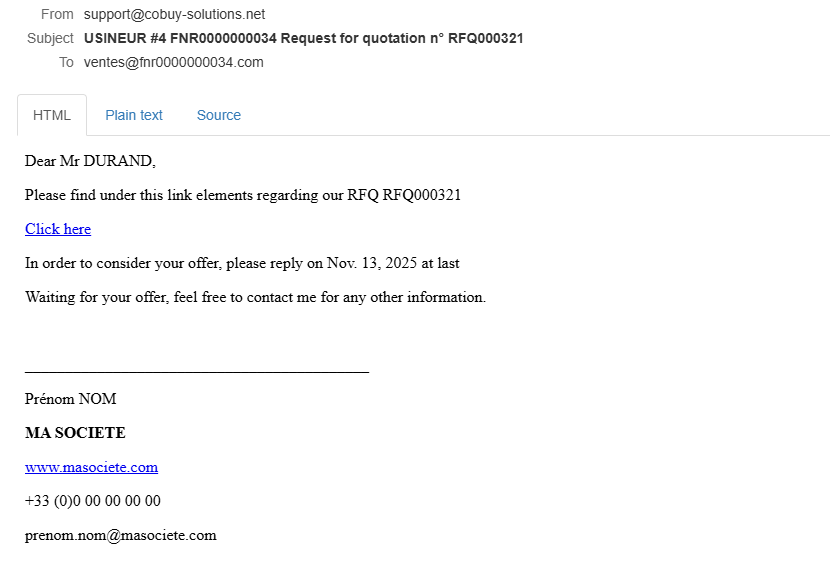
You have received an email from your customer notifying you of a RFQ concerning your company. Clicking on the link included in the email will take you to the offer form :
Clicking the link will allow you to view the contents of the consultation. To respond using the form and upload documents, you must click the “Respond to the RFQ” button.
To respond to a consultation, you must, for each offer line, click on the ellipsis icon (three vertical dots) located to the right of each offer line, then fill in the form information — at least the mandatory fields.
If you wish to decline an offer line, a dedicated button is available at the bottom of the offer line editing form (lines that are not filled in when submitting the form will automatically be considered declined).
You can add an offer line on your own initiative (e.g., quantity alternative, technical alternative, etc.) by clicking on the “duplicate” option available under the ellipsis icon (three vertical dots) located to the right of each offer line.
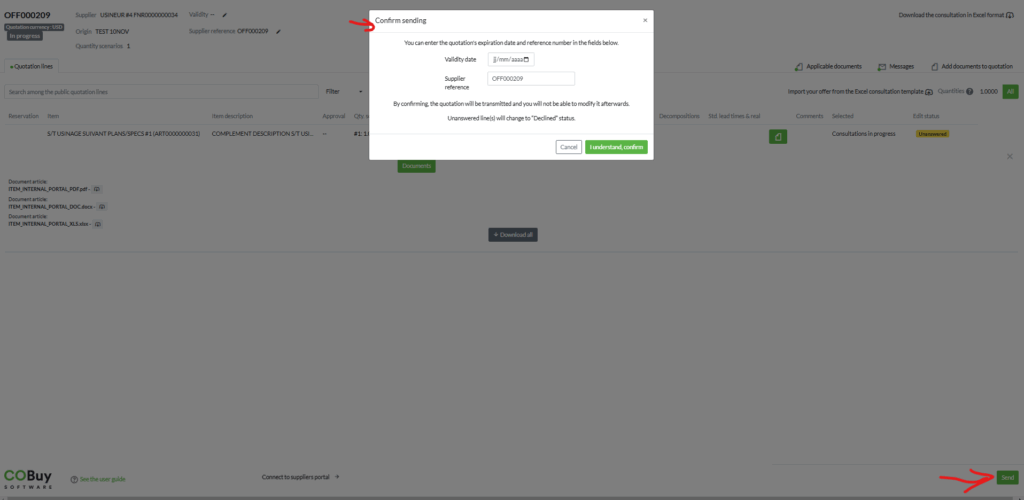
You can provide the reference number of your offer and its expiry date by clicking on the “Pen” icon in the header of the form or in the appropriate fields in the confirmation pop-up when submitting your offer.
Documents related to the item (e.g., drawings, specifications, etc.) are available by clicking on the green icon found on each line.
Documents related to the consultation (e.g., general terms and conditions, CSR charter, etc.) are available in the “Applicable documents” tab.
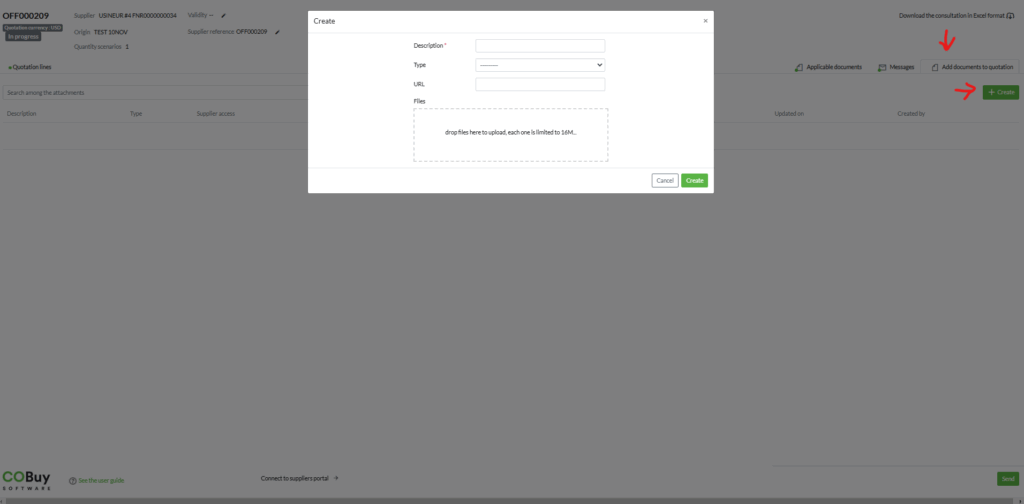
You can add documents to your offer via the “Add documents to the offer” tab.
Add one or more attachment(s) to your bid
You can add as many attachments as you need to your bid. To do so, click on the “Add documents to the offer” link on the right of the screen
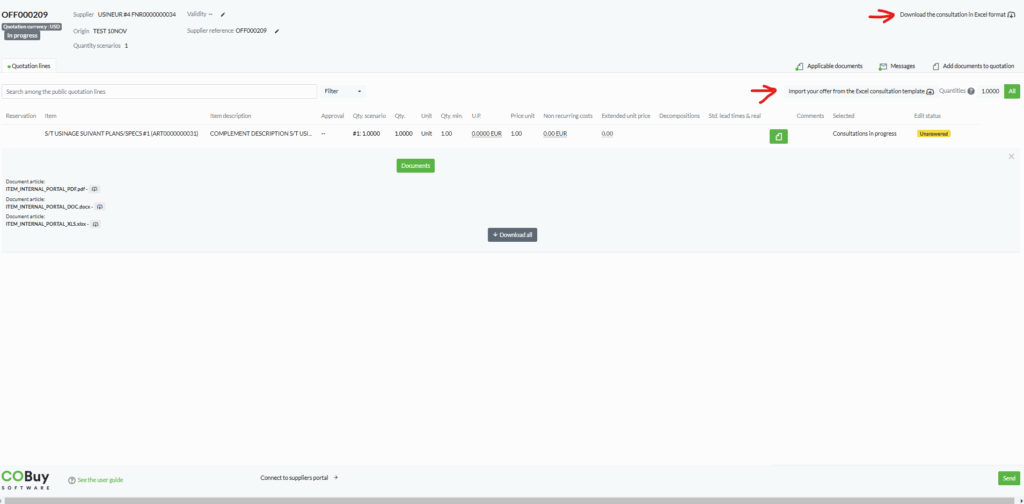
Download the RFQ in Excel file
You can export the contents of the RFQ into an Excel file, whose first tab lists the elements of the query, the second any attachments (drawing/specifications) linked to each element. The attachments can be downloaded directly from the Excel file.
It is also possible to upload the Excel file filled in with your information using the “upload” icon available in the offer line tab. If you do not carry out the import yourself, you can submit the Excel file to the buyer by placing it in the “Offer attachments” tab in order to facilitate the integration of your offer.
Errors related to importing supplier quotes from Excel are now identified directly in the Excel file in the last column titled “Errors.” The affected rows are highlighted in red. Corrections can be made directly in this file, which can be reused to restart the quote import after correcting an error.

Send the quotation form
The data entered for each offer line is only shared with the buyer when you click on the green “Send” button located at the bottom right of the form. The buyer in charge of the RFQ will then be notified of the submit of your offer.